
HTML5 document viewerOpen any document, in any browser. Nothing to install.
VectorViewer is an HTML5 viewer and annotator for more than 30 formats. Review, mark up, redact and compare documents right in the page, with an assistant that reads them alongside you.
PDF, Word, Excel, PowerPoint, TIFF and more
Redaction for sensitive text and images
Original files are never modified
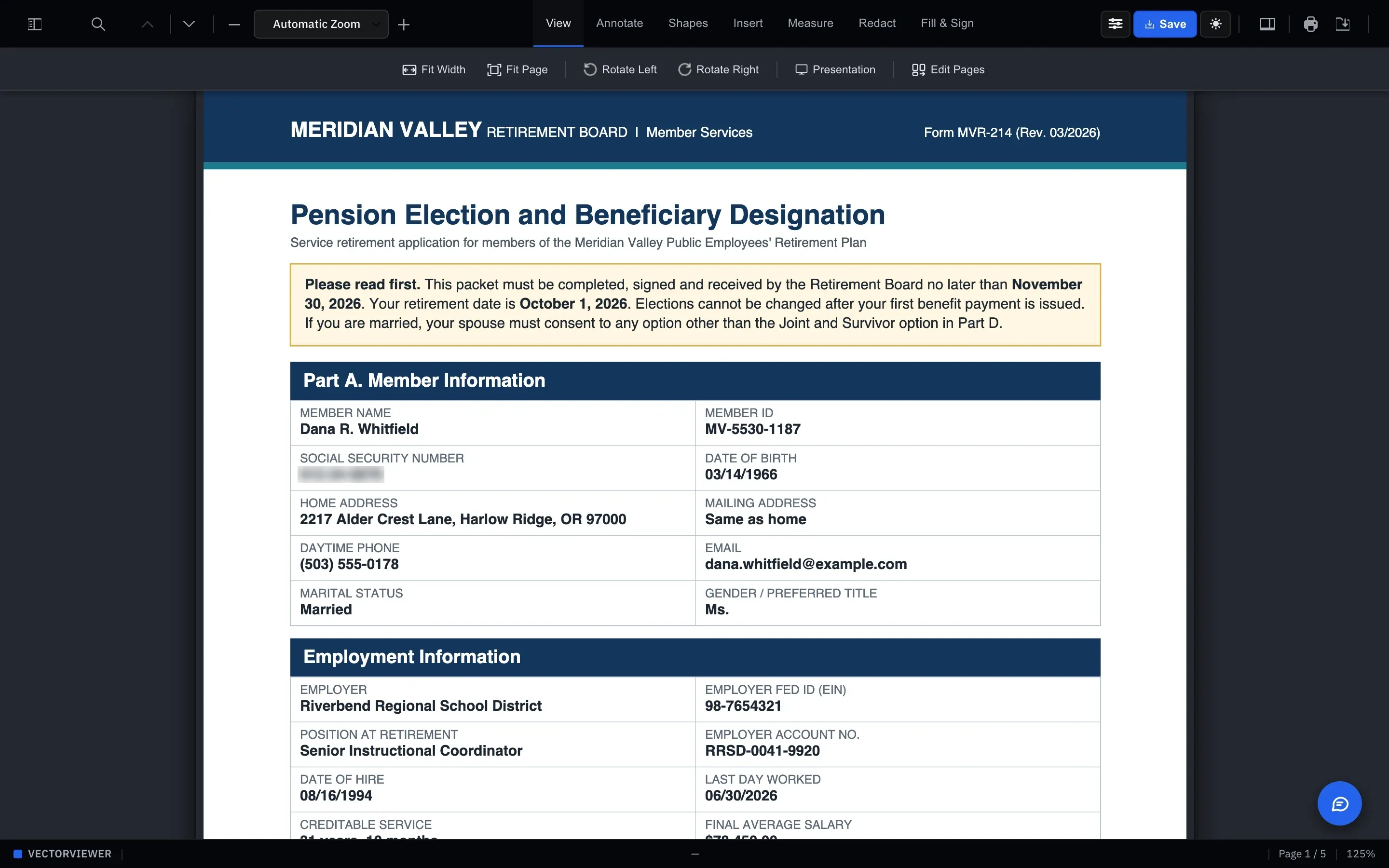
Every time someone downloads a document just to read it, a copy leaves your control. It sits in a downloads folder, gets forwarded, gets opened in whatever reader happens to be installed. Nobody can say who saw what.
VectorViewer keeps the document where it belongs. It renders in the browser, on any device, so there’s nothing for IT to roll out and nothing to patch. Markup lives in its own layer, and every comment shows who left it.
It’s the same viewer that powers review inside VectorForms, VectorSign and VectorCLM, so your team learns it once and sees the same document at every step.
Everything a reviewer needs, in the page.
Native HTML5 rendering
Over 30 formats, including PDF, Word, Excel, PowerPoint, TIFF and images, rendered without converting the original.
Annotate & comment
Highlights, sticky notes, shapes, watermarks and stamps, plus threaded comments. Each one is tracked by author.
Redaction
Mark sensitive text and images with rectangle or circle redactions, applied when the document is exported.
Version compare
Put two versions side by side and see exactly what changed between them.
Measure, insert, fill & sign
Measure drawings, insert content, and fill or sign a document without switching tools.
Role-based permissions
Admin, Regular and Read-Only roles decide who can view, annotate or export.
Document Assistant
Ask the document. It answers with the page.
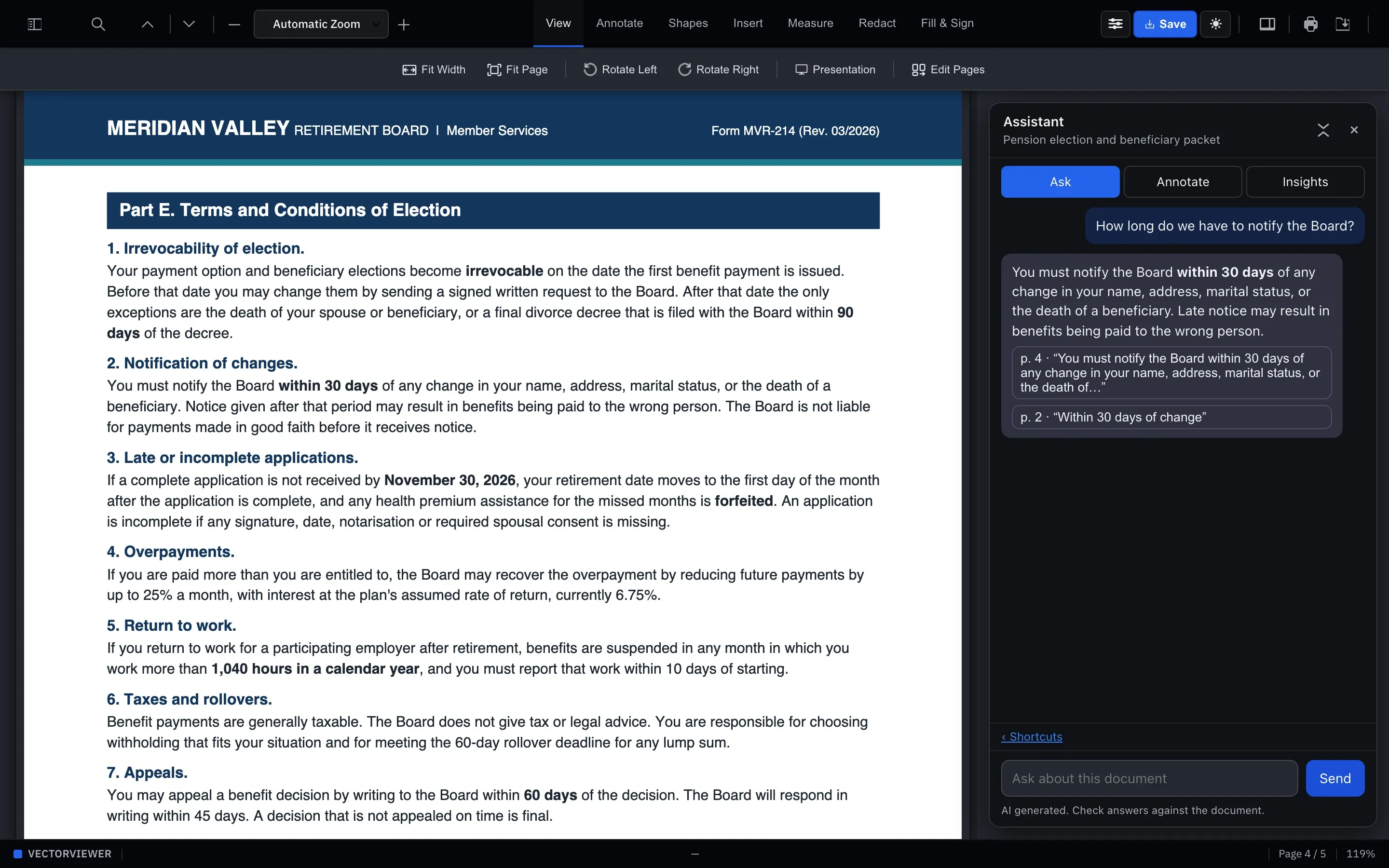
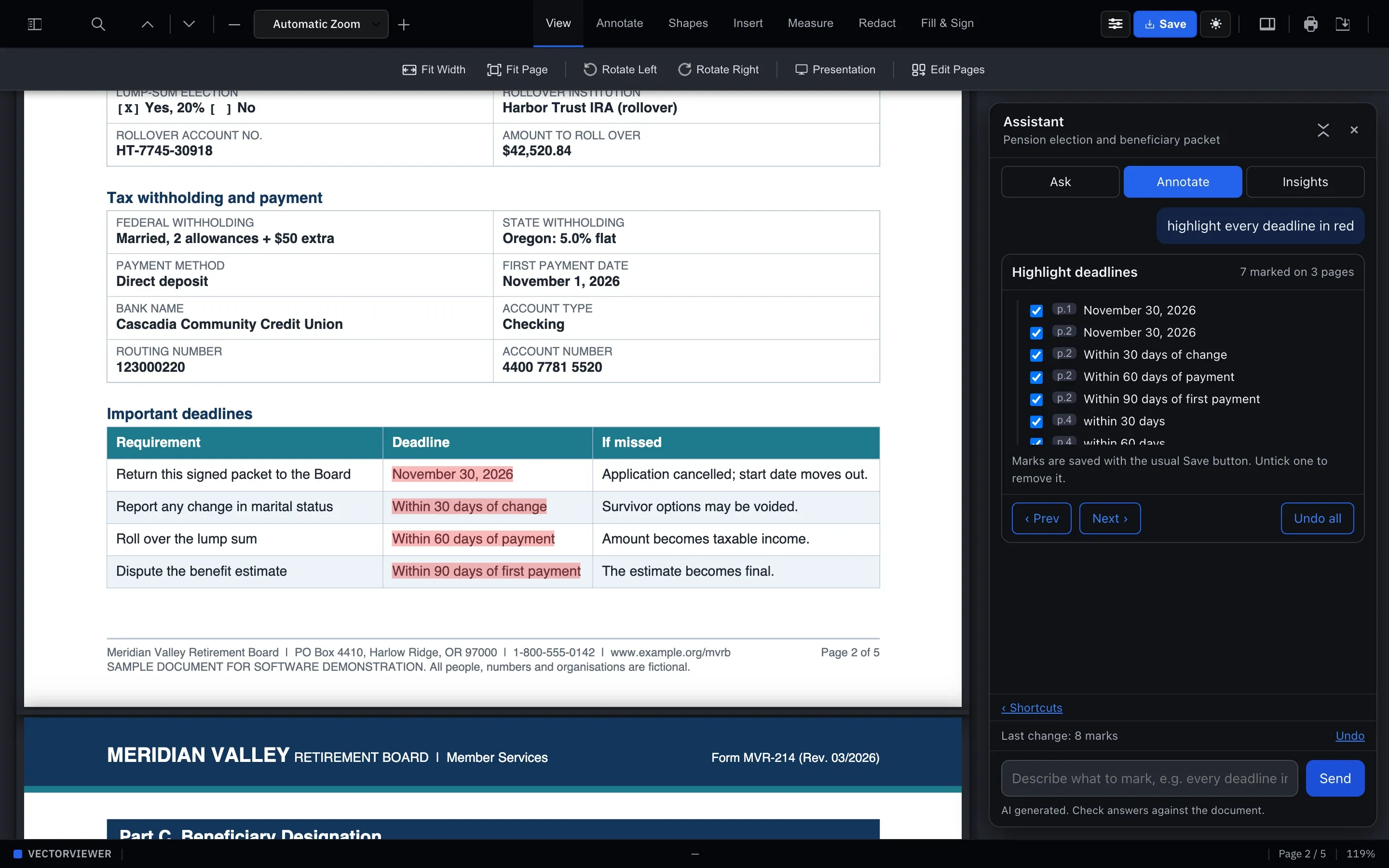
The assistant sits beside the document. Ask how long a member has to notify the board, and it tells you within 30 days and shows you pages 4 and 2. Select a clause and ask what it means.
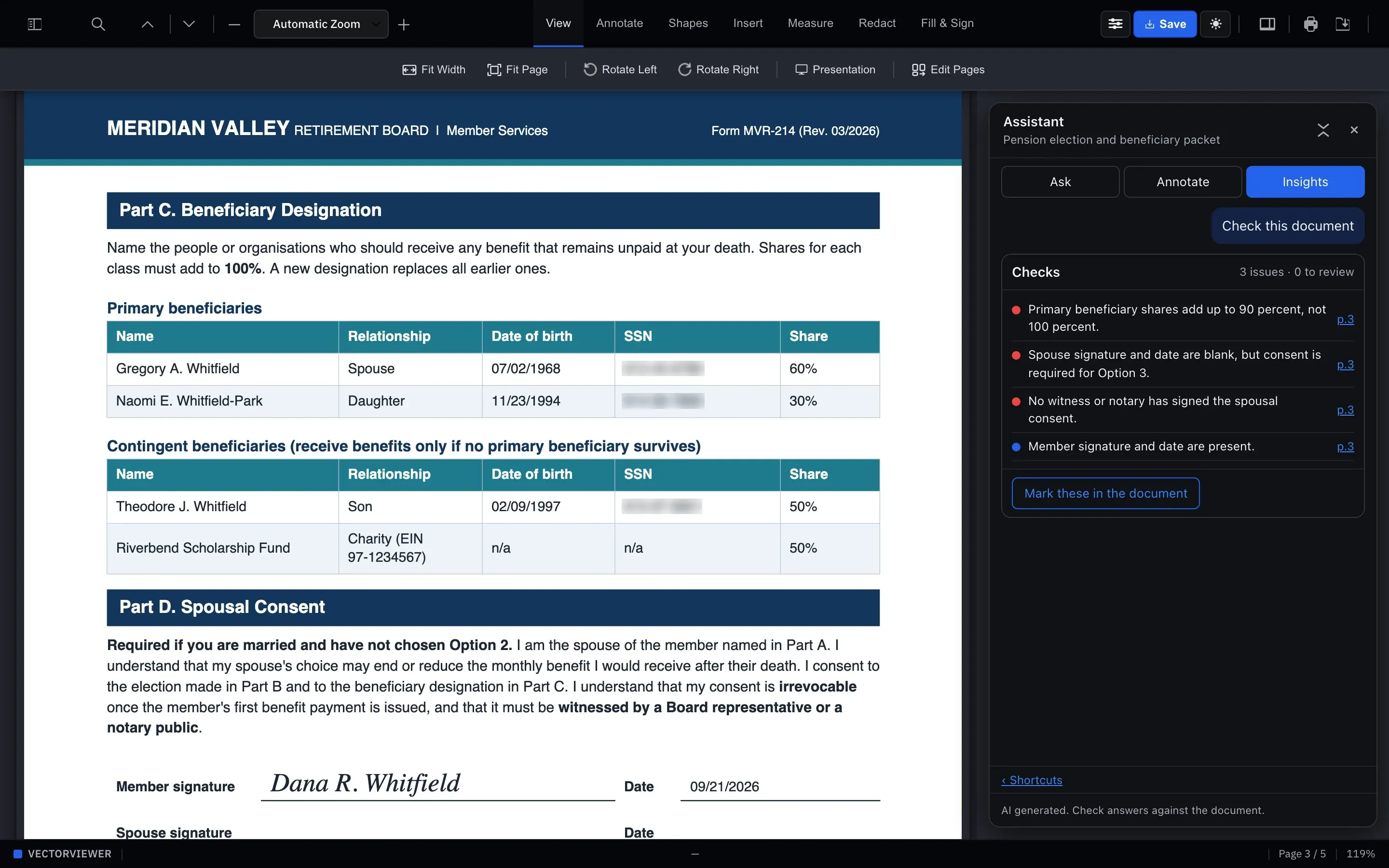
It never acts on its own. Every suggested highlight or redaction waits for you to press Apply, and every answer is labeled so reviewers check it against the source.
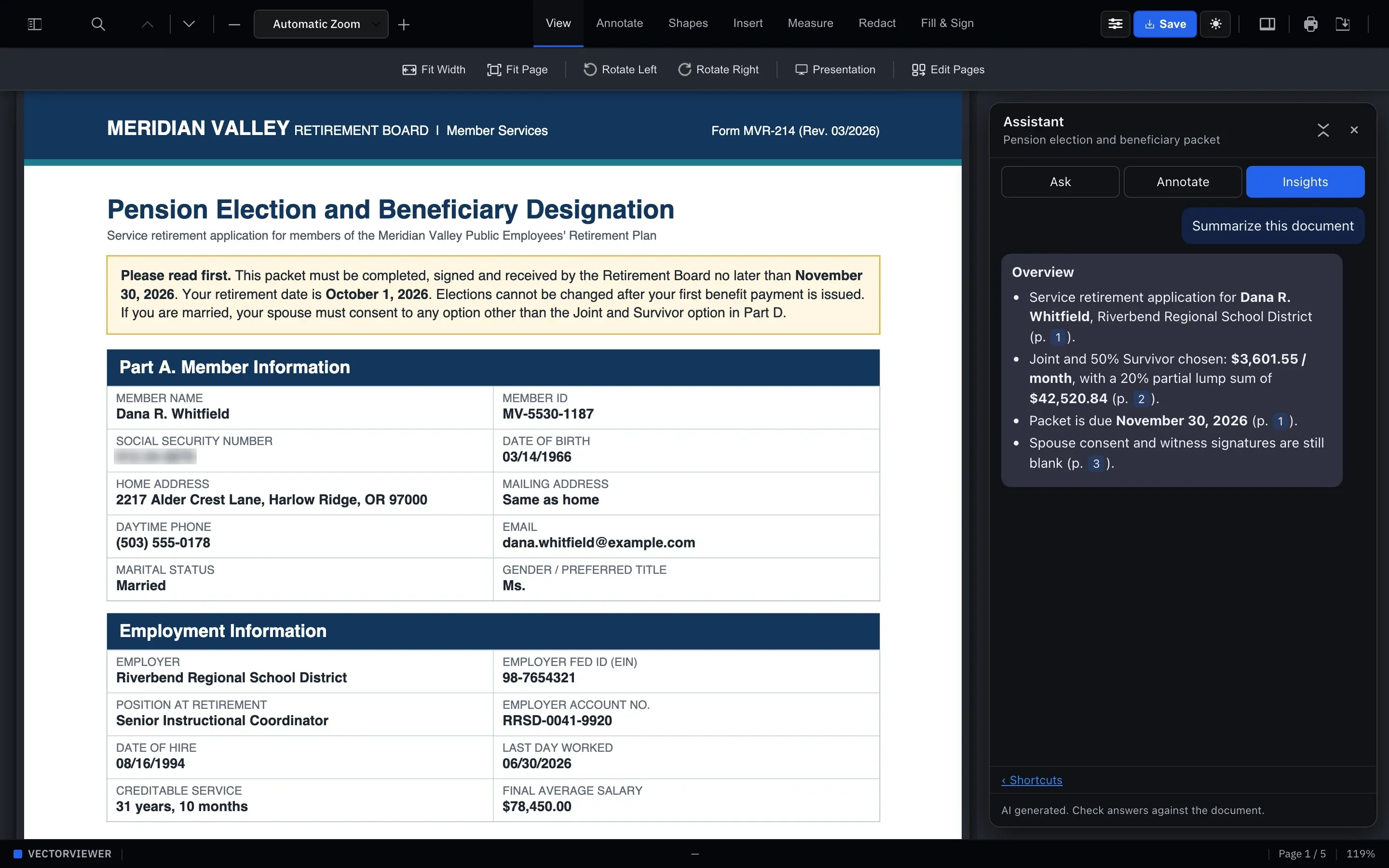
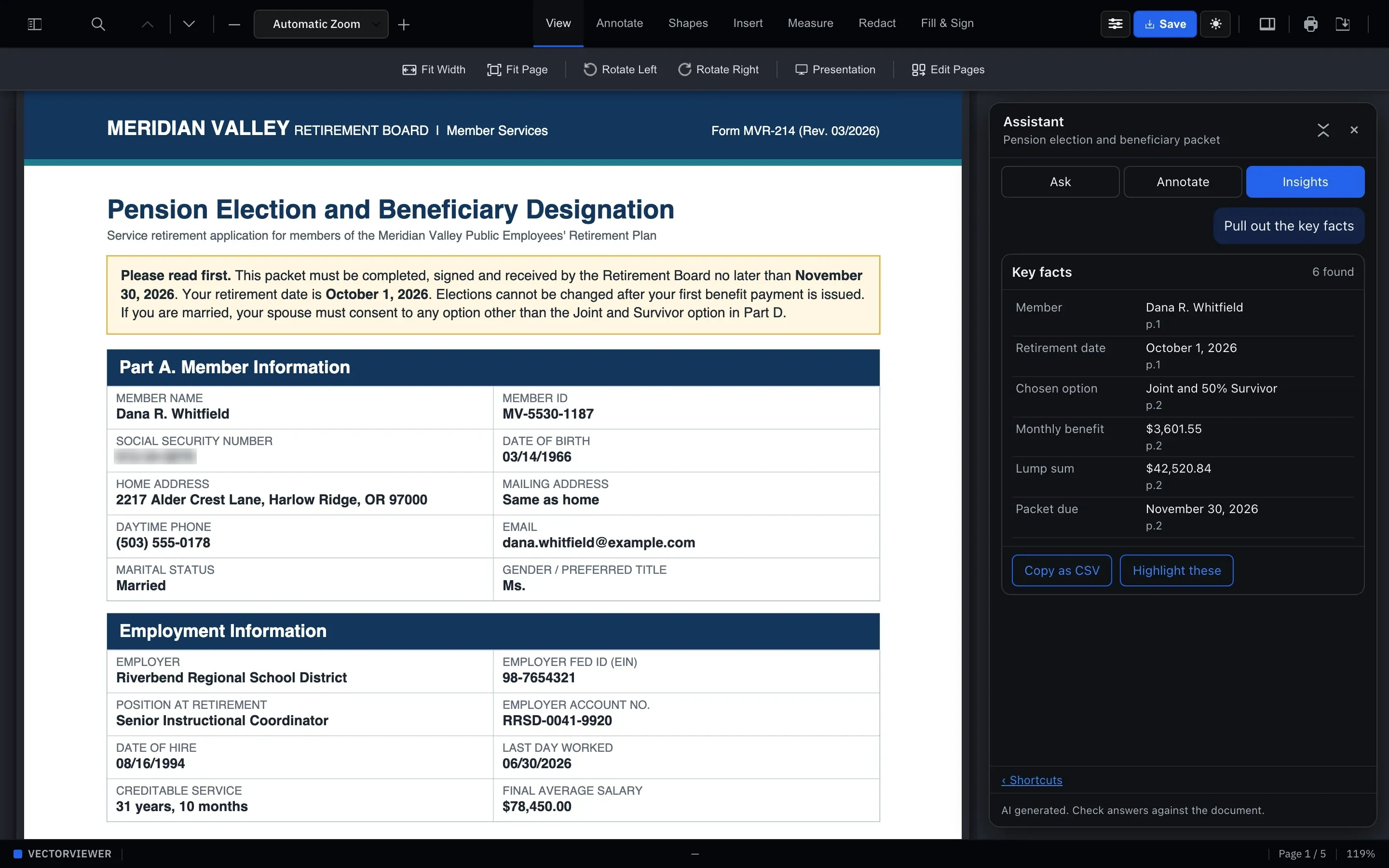
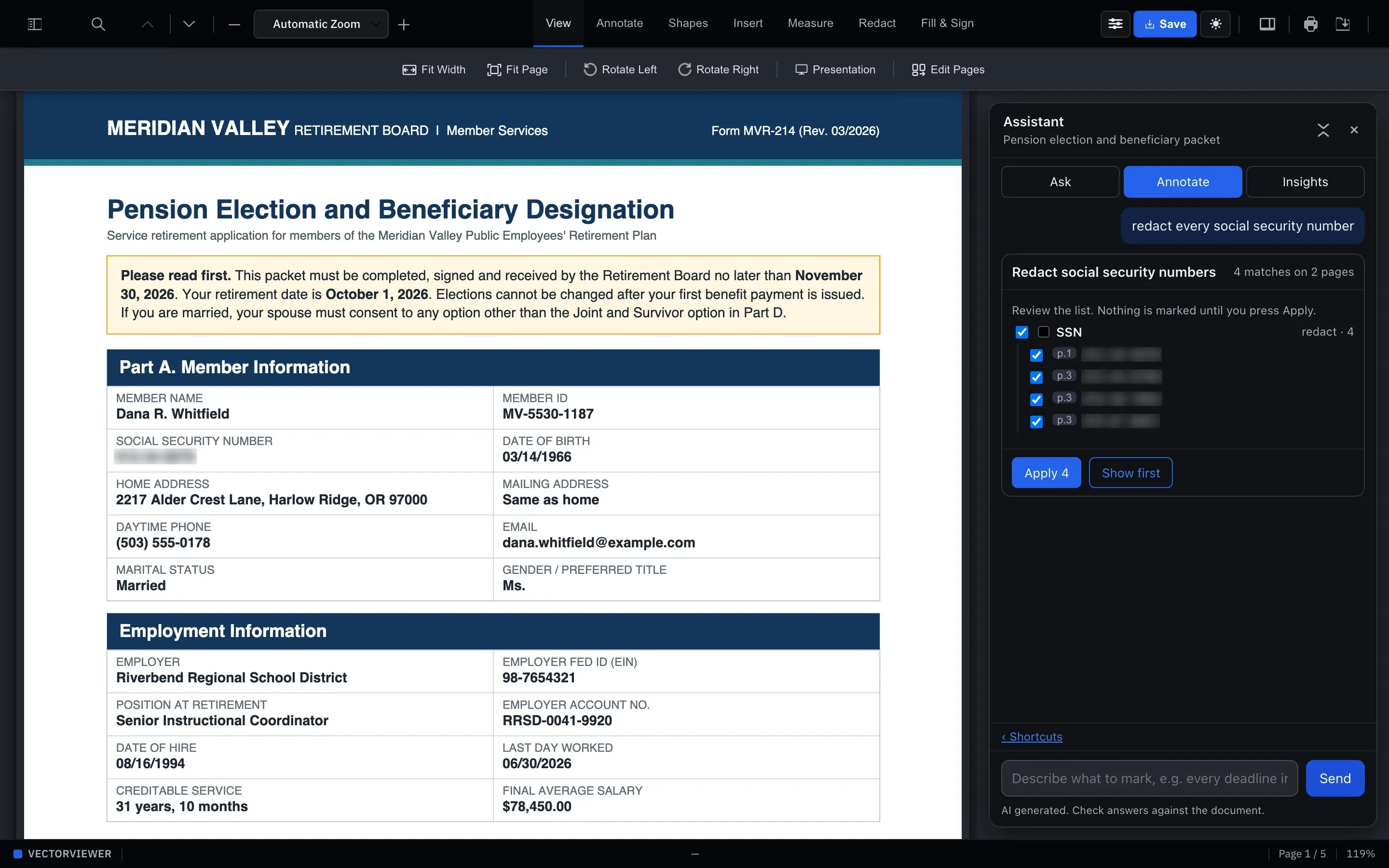
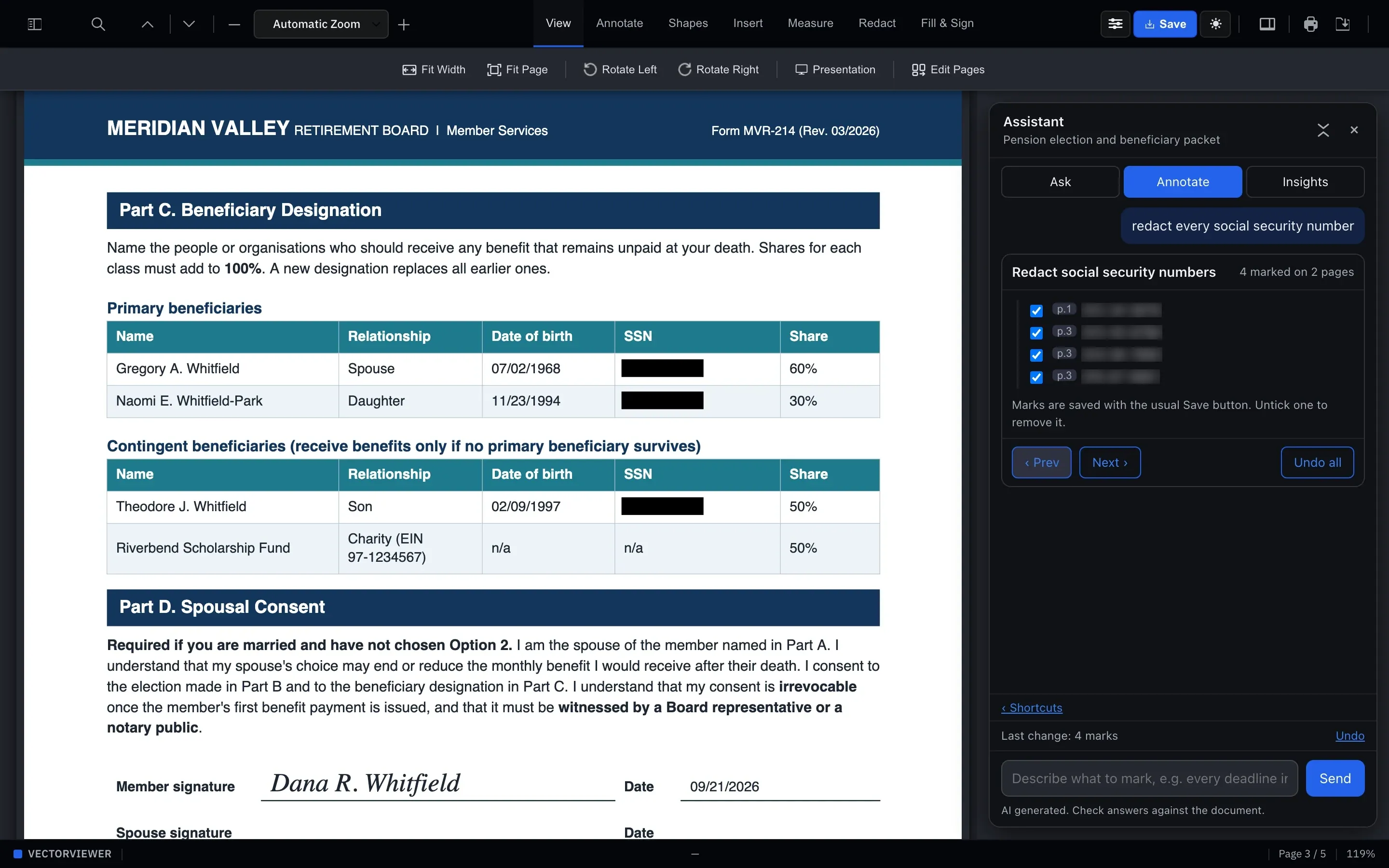
Redaction you can trust with a social security number.
Ask for every SSN and review the matches. Press Apply to mark them for redaction.
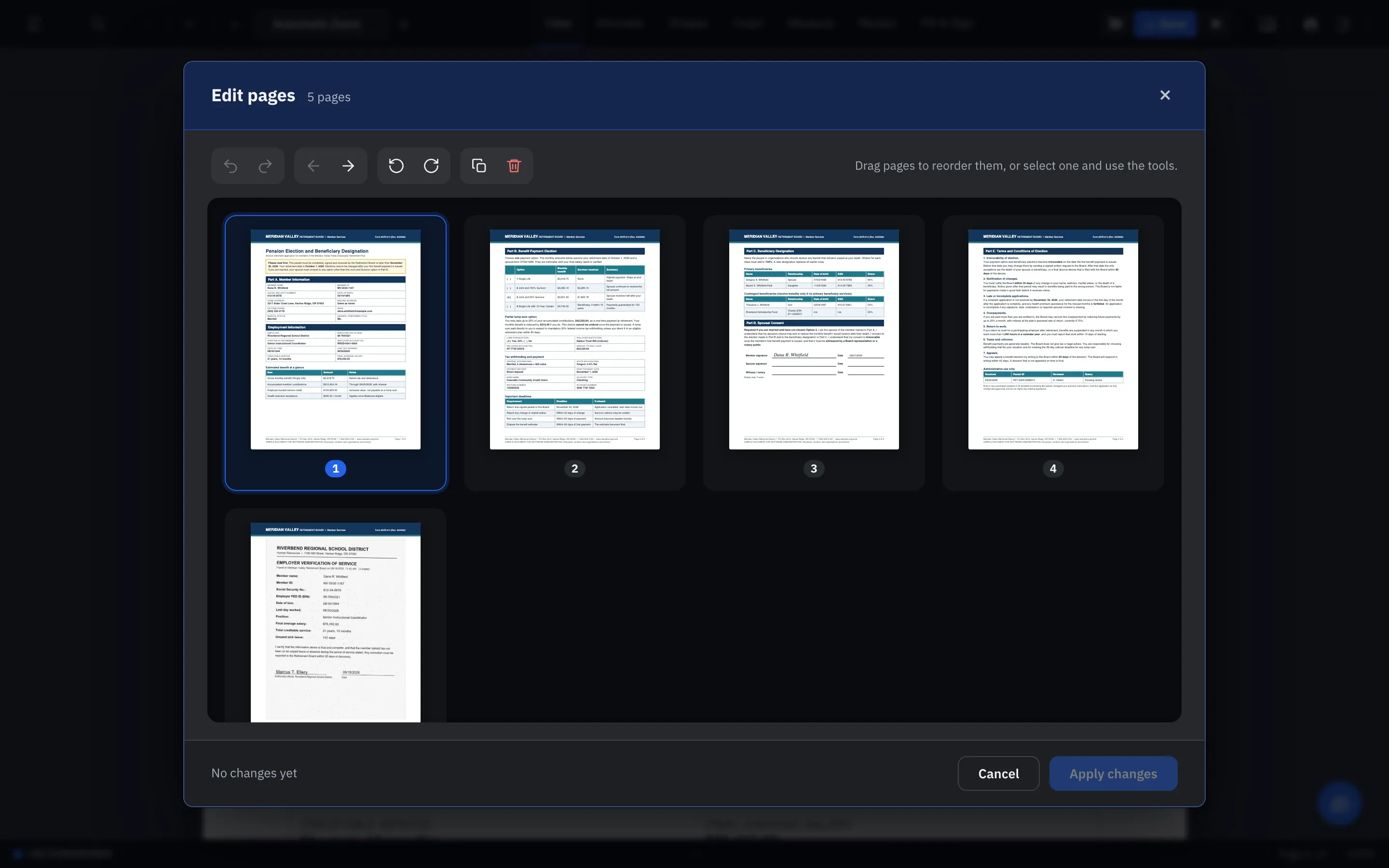
Put the pages in order before anyone else sees them.
The scanned verification letter landed on page five? Drag it where it belongs. Rotate the sideways page, duplicate a cover sheet, drop the blank one. Nothing is applied until you say so.
For platforms serving many clients
One viewer, every client, from one dashboard.
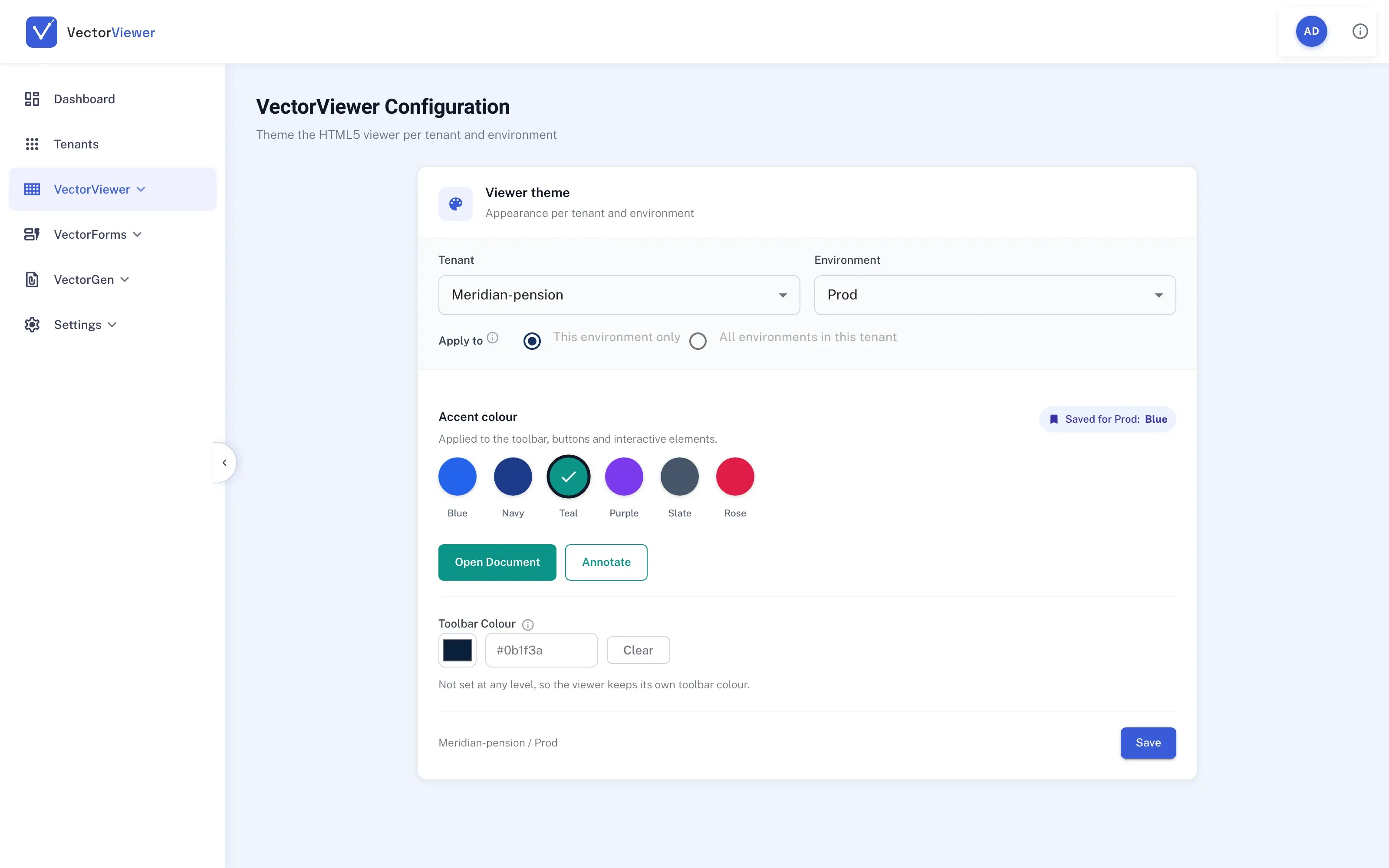
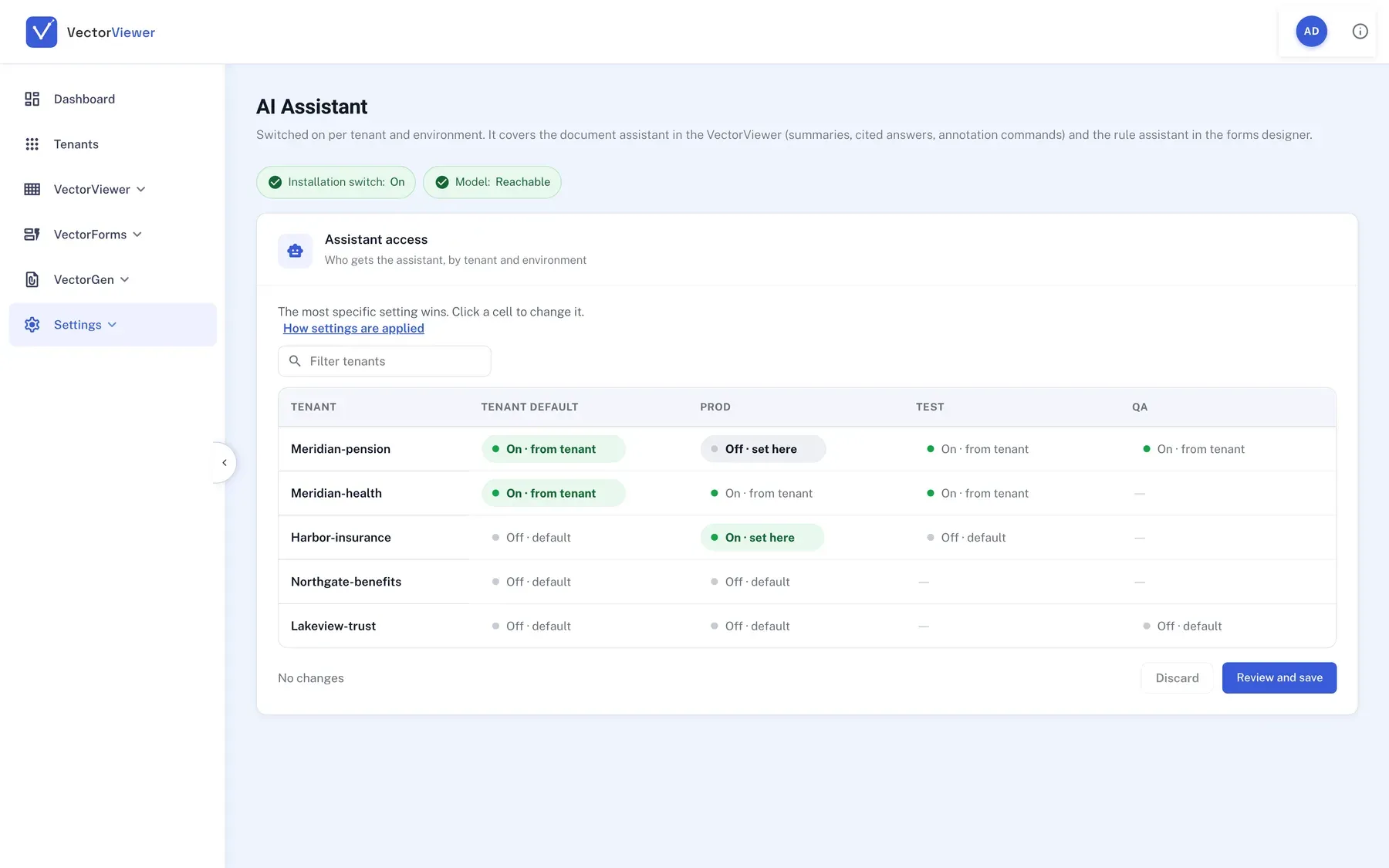
The client dashboard shows documents inducted and viewed across every tenant, or drills into one client and environment. Theme the viewer for each client, and switch the assistant on or off per tenant and environment, from Settings.
See white-labeling →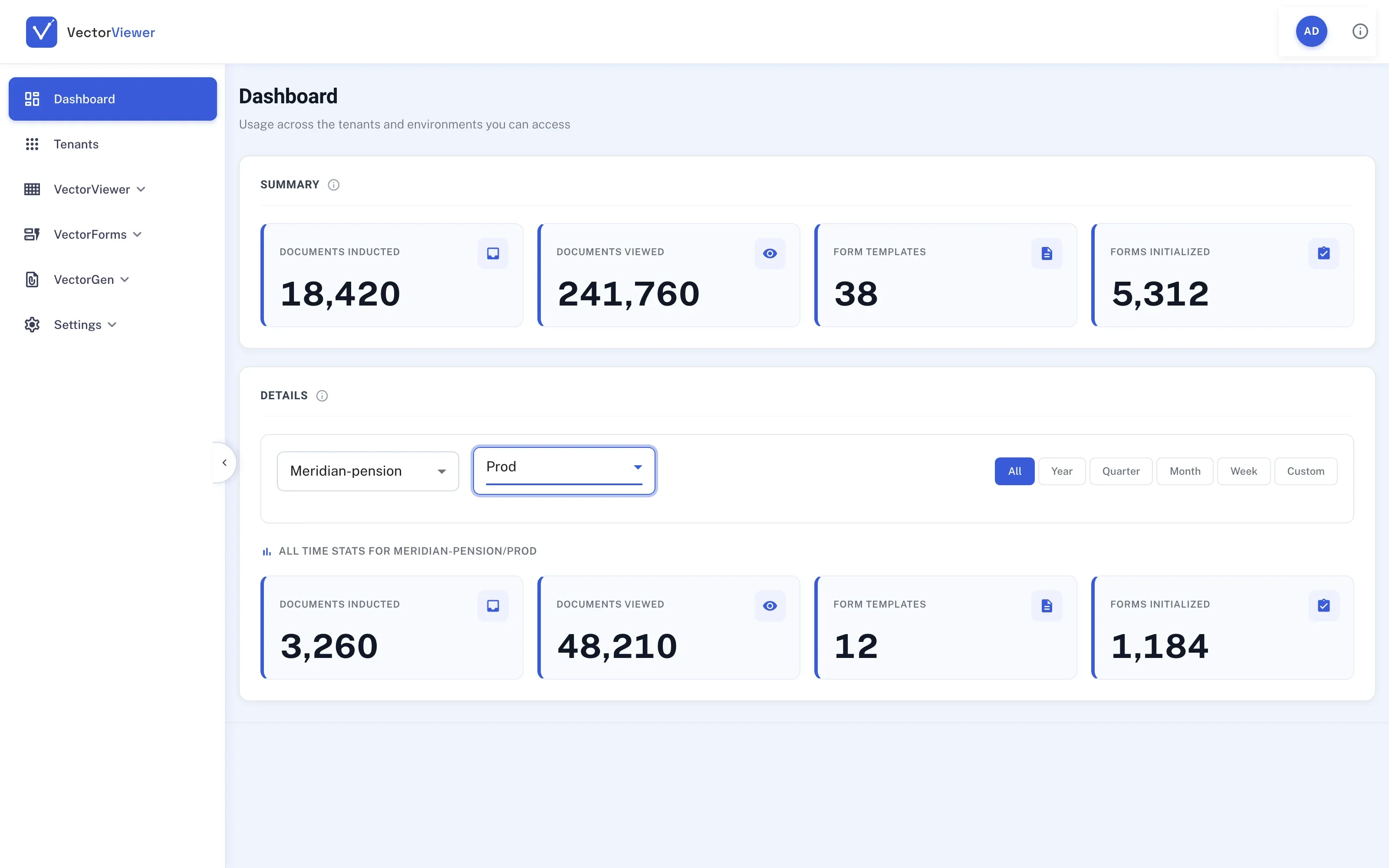
How a document moves through VectorViewer.
What people ask about VectorViewer.
Do users need to install anything?
No. There’s nothing to install, download or keep patched. It runs in any modern browser.
Which file types are supported?
More than 30, including PDF, Word, Excel, PowerPoint, TIFF and common image formats. They render natively, without converting the original file.
How does redaction work?
Mark areas with rectangle or circle redactions. The redactions are applied when the document is exported, so the copy you share carries the redacted output.
Can the assistant change a document by itself?
No. It suggests highlights and redactions, and nothing is marked until you press Apply. Admins can also turn it off for any tenant or environment, in Settings.
How do we control who sees what?
Admin, Regular and Read-Only roles decide who can view, annotate or export, and access can be scoped to specific tenants and environments.
Open one of your own documents in it.
Bring the hardest file you have. We’ll render it, mark it up and redact it on the call.